I used to treat website security as something for companies with an IT department. Then I learned that a free Cloudflare account puts a layer of protection in front of any website, and it felt like finding money in an old jacket. You point your domain at Cloudflare, and your visitors get a faster, safer site while you pay nothing. The catch is a few clicks that are easy to get wrong, so here they are in order.
This setup is ideal for founders, freelancers, and small teams who own a domain and want HTTPS, caching and attack protection without paying for it.
What this gives you
- A free SSL certificate for visitors (the padlock in the browser)
- A CDN that serves your pages from servers closer to your visitors
- Unmetered DDoS protection against floods of junk traffic
- A basic web application firewall from the free managed ruleset
- $0 per month on the Free plan
Tech stack: Cloudflare (DNS, SSL, CDN, DDoS protection) + your domain registrar (where you change nameservers)
What you need
- A domain name you own, and a login to the registrar where you bought it
- A website that already works at that domain
- An email address for the Cloudflare account
Good to know: Cloudflare describes the Free plan as intended for personal or hobby projects that aren't business-critical. It comes with community forums and docs only for support, and its plan page lists the uptime SLA as not included.
1Create your Cloudflare account
Cloudflare sits between your visitors and your website, a bit like a receptionist who checks everyone at the door and hands out copies of your most popular pages. The account is where you manage that.
- Go to dash.cloudflare.com/sign-up
- Enter your email address and a password, then select Create Account
- Cloudflare emails you to verify the address. Open that email and confirm it.
2Add your domain and pick the Free plan
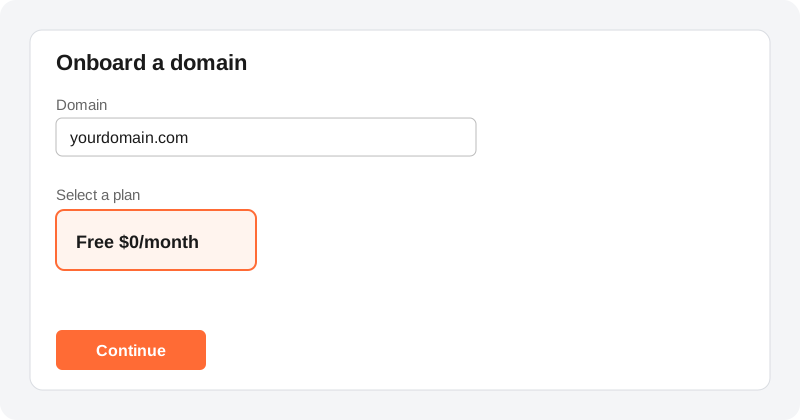
Adding a domain tells Cloudflare which site to protect. Cloudflare asks for your apex domain, which is the plain version without www, such as yourdomain.com.
- In the dashboard, go to Domains and select Onboard a domain
- Enter
yourdomain.com, choose how to add your DNS records, and select Continue - Select a plan. Choose the Free plan.
3Check your DNS records and the orange cloud
DNS records are the address book that says where your website and email live. Once Cloudflare takes over your DNS, it must have a complete copy of that address book, or parts of your site or email can stop working.
- Review the list: the main domain, subdomains such as
www, and any email records - Add anything that's missing. Cloudflare tells you to add missing records manually.
- For each A, AAAA or CNAME record, check the proxy status. Proxied (orange cloud) sends traffic through Cloudflare. DNS only (gray cloud) just returns the address.
- Select Continue
Common mistake: losing email. Compare Cloudflare's list with the DNS records at your current provider before you move on, especially your email records. MX and TXT records are always DNS only, and a record that serves email rather than web pages should stay on DNS only too.
4Switch your nameservers
Nameservers are the servers that answer the question "where does this domain live?". Right now your registrar's servers answer it. You're going to hand that job to Cloudflare.
- Cloudflare shows you two nameservers. Copy them exactly.
- Log in to your registrar and find the domain's nameserver settings.
- If DNSSEC is switched on at your registrar, turn it off first. Cloudflare warns that changing nameservers with DNSSEC active can make your domain unreachable.
- Remove the existing nameservers and enter the two Cloudflare ones.
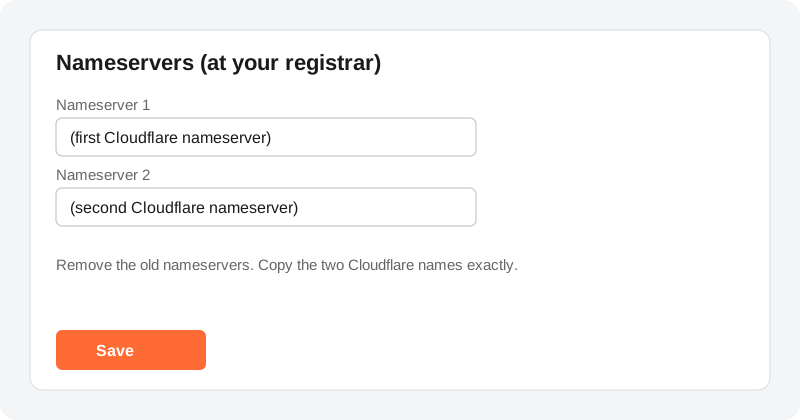
Timing: Cloudflare says your registrar may take up to 24 hours to update. When the domain becomes Active, Cloudflare emails you. You can also check the Domains page, which should show Active.
5Turn on HTTPS properly
HTTPS encrypts the connection so visitors see the padlock instead of a "Not secure" warning. Cloudflare provides the certificate for visitors. You then choose how Cloudflare talks to your own server, which is called the encryption mode.
- Go to SSL/TLS > Overview
- Check the encryption mode. Cloudflare recommends Full or Full (strict) whenever possible. Full (strict) also validates your server's certificate, so it needs a valid one on your server.
- Go to SSL/TLS > Edge Certificates and turn on Always Use HTTPS. It redirects visitors from HTTP to HTTPS.
Common mistake: leaving the mode on Flexible. Flexible encrypts the visitor-to-Cloudflare leg only, and traffic from Cloudflare to your server is not encrypted. Also, Always Use HTTPS doesn't fix mixed content, which is a secure page loading an image or script over plain HTTP. Fix those links on the page itself.
Your hosting may already redirect to HTTPS. Cloudflare recommends against doing that redirect on your own server as well, because it can cause redirect loops. If you see a "too many redirects" error, that's the first place to look.
6Know what protection you now have
There is nothing to switch on here. Cloudflare says it automatically detects and mitigates DDoS attacks, and lists that protection as available on all plans. A DDoS attack is an attempt to knock a site offline by flooding it with traffic.
- The Free plan includes unmetered DDoS protection, a CDN, a Universal SSL certificate and a free managed ruleset
- Bot mitigation covers simple bots only
- Cloudflare's plan page lists 70 rules on the Free plan
7Test that it's working
Check the result instead of assuming it worked.
- Open the Domains page and confirm the status reads Active
- Visit
http://yourdomain.comin a browser. It should jump tohttps://and show the padlock. - To confirm the nameservers from a terminal, run:
- To confirm traffic passes through Cloudflare, run the command below. For a proxied record, look for
server: cloudflarein the response headers.
If the dashboard says Active and your site loads over HTTPS, you're done. ✅
Final result
- Your domain's DNS is managed by Cloudflare
- Visitors get HTTPS, redirected automatically
- Traffic goes through a CDN with DDoS protection in front
- It cost nothing
Troubleshooting quick checks
- Stuck on "Pending Nameserver Update"? Re-open your registrar settings and make sure the two Cloudflare nameservers match exactly. Registrars can take up to 24 hours.
- Email stopped arriving? A DNS record didn't make the move. Add the missing MX and TXT records in Cloudflare and keep them on DNS only.
- Site unreachable after the switch? If DNSSEC was left on at the registrar, turn it off there. Cloudflare says you can re-enable it through Cloudflare once the domain is active.
- "Too many redirects"? Check whether your own server also forces HTTPS, and review the encryption mode under SSL/TLS > Overview.
- Need to confirm the nameservers? Try whatsmydns.net, though cached results can lag.
Comments
Be the first to leave a comment!