The worst way to learn your website is down is from a customer. I've had the "hey, is your site broken?" message, and it's an awful feeling, mostly because the site had been dead for hours and I had no idea. A free monitoring service pings your site on a schedule and buzzes your phone the moment it stops answering. Setup takes about ten minutes.
This setup is ideal for founders, freelancers, and small teams who want to know about a broken website before anyone else does.
What this gives you
- A check on your site every 5 minutes, around the clock
- An email and a phone push alert the moment it goes down
- Room for up to 50 monitors (sites, pages, or servers) on the free plan
- $0 cost, no credit card required
Tech stack: UptimeRobot (monitoring) + UptimeRobot mobile app (phone alerts)
What you need
- The address (URL) of the site you want to watch
- An email address
- An iPhone or Android phone
Good to know: UptimeRobot's free plan checks every 5 minutes, so a short outage can fall between two checks. It's perfect for "is my site down?", not for second-by-second monitoring. UptimeRobot's terms (last updated May 26, 2026) say the service is available for any use, including commercial and business use.
1Create your free account
UptimeRobot is a service that visits your website on a schedule, like a night watchman checking a door. If the page doesn't respond or returns an error, it marks the site as DOWN and tells you.
- Go to uptimerobot.com
- Sign up with your email address. No credit card is needed for the free plan.
- Log in to your dashboard.
2Add your website as a monitor
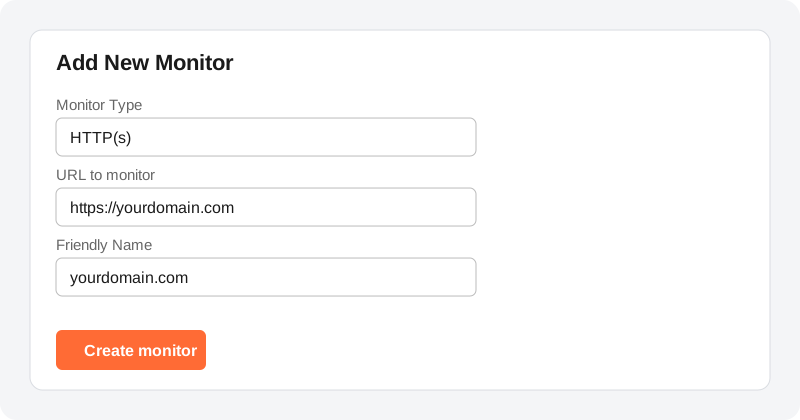
A "monitor" is simply one thing UptimeRobot watches. An HTTP(s) monitor loads a web address and checks that a healthy response comes back.
- Click + Add New Monitor
- Set the monitor type to HTTP(s)
- Enter your site's address in the URL field, for example
https://yourdomain.com - Check the Friendly Name. It fills in from the URL, and you can rename it to something you'll recognise.
Common mistake: typing the wrong version of your address. Use the exact URL people visit, including https://. If your bare domain redirects to the www version, monitor the address that actually loads.
3Choose who gets alerted
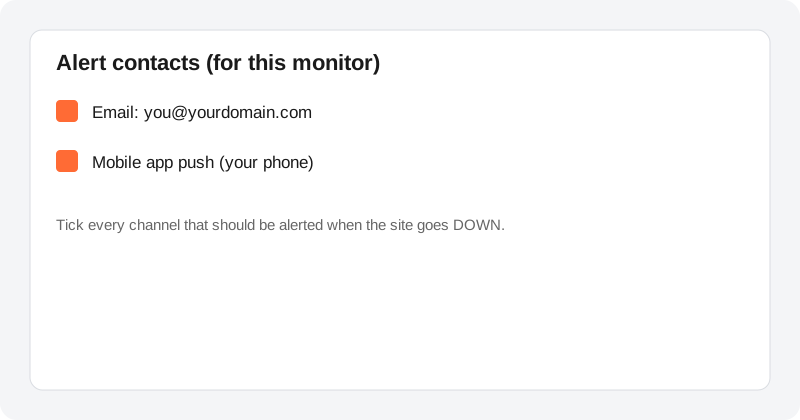
Alert contacts are the channels UptimeRobot uses to reach you. On the same form, select the alert contacts you want for this monitor. Email is usually already there, because it's the address you registered with.
- Review the list of alert contacts on the form and tick the ones you want.
- If you like, set a notification delay or repetition. The form offers both.
- Leave the check interval at the default the form offers on the free plan (5 minutes).
Then click Create monitor. Your monitor appears in the dashboard and starts checking right away.
Result: your site shows in the dashboard with an Up status.
4Get alerts on your phone
Email is easy to miss at 2 a.m. Push notifications from the UptimeRobot app are much harder to ignore. The app is free on iOS and Android and works on the free plan.
- Install the UptimeRobot app from the App Store or Google Play.
- Log in with your UptimeRobot username.
- Back in the dashboard, the push notification contact for your phone is now available. Activate it for your monitors.
UptimeRobot's help center says you can add one push contact for Android devices and one for iOS devices. Allow notifications for the app in your phone's settings, or the alerts won't show.
5Test that it really works
Don't trust an alert system you haven't seen fire. The safest test is to add a second monitor pointing at an address that doesn't exist on your site.
- Add a new HTTP(s) monitor for a page that doesn't exist, such as:
- Wait for the next check. A missing page normally returns an error, so the monitor should go to DOWN and send your email and phone alerts.
- Delete the test monitor when you're done.
If the alert reached your phone and inbox, you're covered. ✅
Final result
- Your site is checked every 5 minutes, all day
- You get an email and a phone push when it goes down
- You have 49 free monitors left for other sites and pages
- It cost nothing
Troubleshooting quick checks
- No push alert? Confirm you're logged in to the app and that notifications are allowed for it in your phone settings.
- Monitor says DOWN but the site loads for you? Re-check the URL, including
https://and any www redirect. UptimeRobot also has a help article, Why is my monitor status wrong? - Alerts going to the wrong place? Open the monitor and check which alert contacts are ticked.
- Need faster checks, SMS or voice calls? UptimeRobot's pricing page lists SMS and voice credits as not included on the free plan.
Comments
Be the first to leave a comment!