
Every time someone asks "where can I find you?", I have the same awkward moment of listing my website, my LinkedIn and my booking page out loud. A link-in-bio page fixes that: one tidy address with your important links on it. The catch is that most tools put their own name in the address. Here's how to host your own for $0, on a web address you own, using one small file.
This setup is ideal for freelancers, consultants, and small teams who want one clean page of links at an address like links.yourdomain.com.
What this gives you
- A links page on your own domain, not someone else's
- Free HTTPS, so visitors see the padlock
- Full control: no ads, no tracking you didn't add, no template limits
- $0 per month for the hosting (you still pay for the domain you already own)
Tech stack: GitHub Pages (free static hosting) + your DNS provider (where you add one record)
What you need
- A free GitHub account
- A domain name you own, and a login to wherever its DNS records are managed
- Ten minutes and the ability to copy and paste
Good to know: on a free GitHub account, the repository must be public, so anything in it is visible to everyone. GitHub's limits page also says Pages is not intended to be used as a free web host to run a business, e-commerce site or commercial SaaS. A page of links is fine. A store is not.
1Create the repository
A repository is a folder on GitHub that holds your files. GitHub Pages turns the files in one special repository into a website.
- Sign in to GitHub, click the + icon in the upper-right corner, then New repository
- Name it
your-username.github.io, using your own GitHub username in lowercase - Set visibility to Public and turn on Add README
- Click Create repository
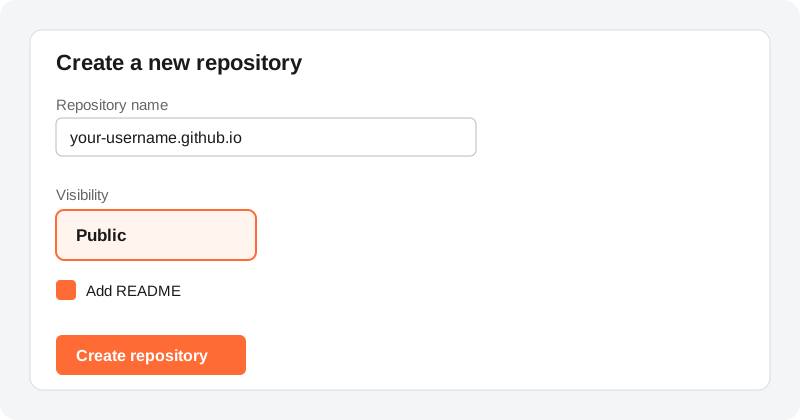
Common mistake: typing the wrong repository name. GitHub requires a user site to be named your username followed by .github.io, and each account gets one user site.
2Add your links page
The whole page is a single file called index.html. GitHub Pages looks for that name first, so it becomes the front door of your site.
- In your new repository, click Add file, then Create new file
- Name the file
index.html - Paste the code below, then replace the name, tagline and links with your own
- Click Commit changes
<!DOCTYPE html>
<html lang="en">
<head>
  <meta charset="UTF-8">
  <meta name="viewport" content="width=device-width, initial-scale=1">
  <title>Your Name - Links</title>
  <style>
    body { font-family: sans-serif; background: #0a0a0a; color: #fff;
           max-width: 420px; margin: 0 auto; padding: 3rem 1rem; text-align: center; }
    a { display: block; background: #ff6b35; color: #fff; text-decoration: none;
        padding: 1rem; margin: 1rem 0; border-radius: 999px; font-weight: 600; }
  </style>
</head>
<body>
  <h1>Your Name</h1>
  <p>One line about what you do.</p>
  <a href="https://yourdomain.com">My website</a>
  <a href="https://www.linkedin.com/in/your-profile">LinkedIn</a>
  <a href="mailto:you@yourdomain.com">Email me</a>
</body>
</html>
Add another button by copying one <a> line and changing the address and the label.
3Turn on GitHub Pages
This tells GitHub where your site's files live. GitHub says it builds and deploys the site with a GitHub Actions workflow, and changes can take up to 10 minutes to appear.
- Open the repository's Settings tab. If you don't see it, use the ⋯ dropdown in the repository header.
- In the sidebar, under "Code, planning, and automation", click Pages
- Choose a publishing source: your
mainbranch and the root folder - Wait a few minutes, then click Visit site
If you can see your page at your-username.github.io, the hosting works. ✅
4Connect your own domain
Right now the page lives at GitHub's address. A custom domain makes it yours. I recommend a subdomain such as links.yourdomain.com because it needs one DNS record and leaves your main website alone.
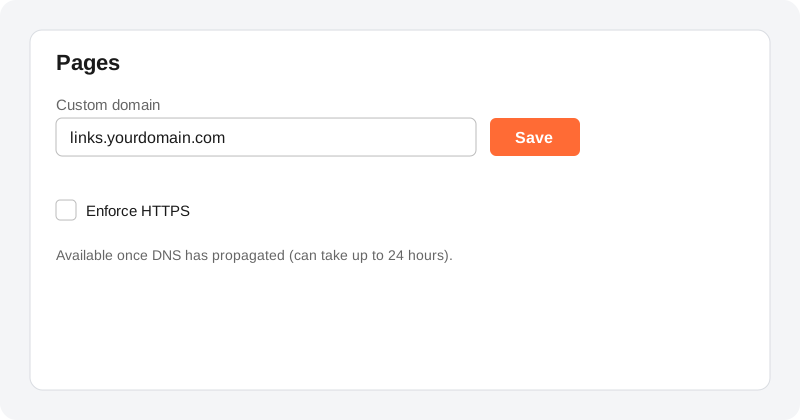
- Back in Settings > Pages, find Custom domain
- Enter
links.yourdomain.comand click Save - Do this before you create the DNS record. GitHub warns that setting DNS first can let someone else host a site on your subdomain.
5Add the DNS record
A DNS record is an entry in your domain's address book. This one says "links.yourdomain.com is hosted by GitHub". Add it where you manage your domain's DNS, which is your registrar or a service like Cloudflare.
| Type | Name | Value |
|---|---|---|
| CNAME | links | your-username.github.io |
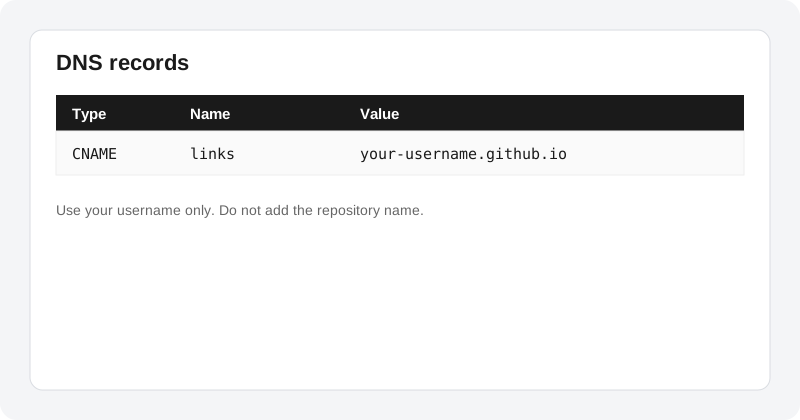
Common mistake: including the repository name in the value. GitHub says to point to <user>.github.io only. Also avoid wildcard records like *.yourdomain.com, which GitHub flags as a takeover risk.
Want the bare domain instead, such as yourdomain.com? GitHub's documentation lists four A records (185.199.108.153, 185.199.109.153, 185.199.110.153 and 185.199.111.153) for the apex domain. Only do this if that domain isn't already used by another website.
6Turn on HTTPS
HTTPS encrypts the connection and gives visitors the padlock. GitHub offers it as a checkbox once your DNS is working.
- Return to Settings > Pages
- Tick Enforce HTTPS
Timing: DNS changes can take up to 24 hours to propagate, and GitHub says Enforce HTTPS may take up to 24 hours to become available. If the box is greyed out, wait and check again.
7Test that it's working
- Open
https://links.yourdomain.comin a browser and check you see your page with the padlock - To check the DNS record from a terminal, run:
- The answer should point to
your-username.github.io
If your page loads at your own address over HTTPS, you're done. ✅
Final result
- A links page at an address you own
- Free hosting and free HTTPS from GitHub Pages
- An easy edit flow: change
index.html, commit, wait a few minutes - It cost nothing beyond the domain
Troubleshooting quick checks
- Page not showing at your-username.github.io? Check the repository name matches your username exactly and the file is called
index.htmlat the top level. Changes can take up to 10 minutes. - Custom domain not working? Run the
digcommand above and confirm the CNAME points toyour-username.github.iowith no repository name. - Enforce HTTPS is greyed out? DNS may still be propagating. GitHub says it can take up to 24 hours.
- Edits not showing? Open the repository's Actions tab to see the latest deployment run, and give it up to 10 minutes.
Comments
Be the first to leave a comment!